
Spots, dots and pixels just what are dpi and ppi |
Tuesday 9th June 2026 |
|
|
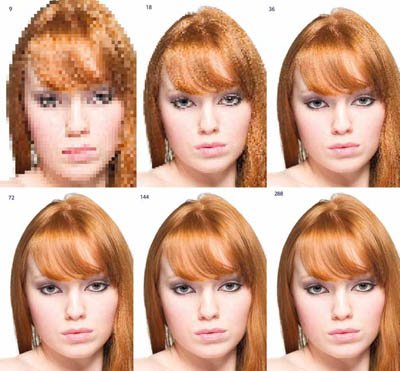
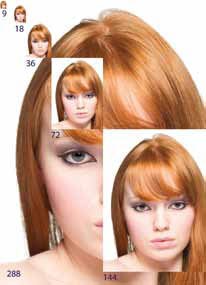
Surprisingly little is the answer, providing all you wish to do is identify the model! The image to the right shows model, Charlie Edwards, scaled at 9, 18, 36, 72, 144 then 288ppi. For the image above the same images have been up-scaled without any smoothing of the pixels, using nearest-neighbour interpolation. Note the progressive improvement in the rendering of the hair as the resolution rises. If you screw your eyes up even the 9ppi image is recognisable as Charlie but this does not provide anywhere near enough information for detailed printing.
By now some hard and fast rules are required in the form of practical advice. It is this. Always preserve as much resolution as you can; do not, for example, downsize to 180ppi because it is closer to the ‘Epson optimum’ until you get below 200ppi – above that go for the pixel preservation route! If you choose to use higher resolutions then take account of this in your sharpening. If, for example, you are High Pass sharpening a normal value for Radius is 1/100 of the resolution (ie choose 1.8 pixels at 180ppi, 3.6 at 360ppi). So, if you elect to downsize to 180ppi or you are forced down to that value because of limited file size, then back off on the radius in sharpening as well. Even with other forms of sharpening, the theory stays true: higher resolutions can take larger radii than lower resolutions (but not the Amount, this stays the same).
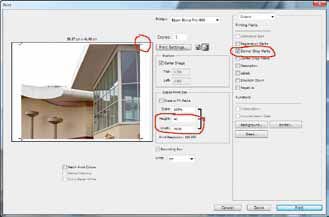
Here is the simplest way to scale and border. The paper size has already
been selected in the printer driver and ‘centred’ was checked there as well ‘Scale to fit media’ indicated a required reduction to 89% so the box was
unchecked and then 80% selected to give a border all round. In the ‘Output’
panel the ‘Border’ button was checked and a 1mm black key line set up
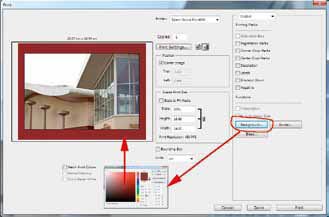
The preview shows exactly what we would get on the print – a centred,
bordered and key-lined image. In this dialogue box, if ‘Background’ is
selected then the background colour may also be chosen, instead of the
default white using the Color Picker, or even, using the Eyedropper and
taking a colour from the image itself.

| |
|
Society of International Commercial and Industrial Photographers (SICIP) is a trading name of BPPA Ltd Subscribe to the Societies Newsletter. Subscribe here. Copyright 2022 SICIP. All rights reserved. - Privacy |