

.


articles/Cameracraft/expstrat-page4
by Mike McNamee Published 01/12/2013
3. Expose to the Right ETTR
If there are no time constraints then you have the luxury of making exposures, and checking the histogram and the highlight indicator on the back of the camera until you place the exposure exactly where you want it. If your luxurious time extends even further (as in, say, product photography) you even have the option of taking the image right through to the computer, or even out to print, before finalising the exposure - this is certainly the way that you should reproduce fine art from a painting - it's never going anywhere after all! The highlight indicator on the back of the camera tends to flash at around 245 RGB points and so if you inch the exposure up until the important highlights are just, flashing then you are probably hitting a true EETR setting. In product photography you can place a Macbeth Chart in the scene, expose until the white patch just flashes, then either stop there or back off 1/3 of a stop for an ETTR setting.
Testing
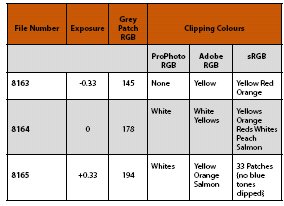
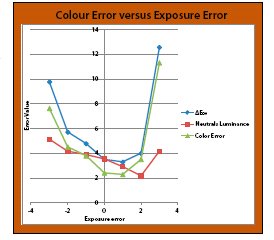
Naturally we were interested to measure the effects of the various compromises. The Macbeth Charts were shot using bracketed sequences followed by analysis 'as shot' and then after careful adjustment in Adobe Raw to bring the mid-grey to the required 121 points (ARGB workspace).
These have been compiled into single frames in which the true Macbeth values have been super-imposed in Photoshop. This gives a visual 'report' of the compromises being made. It is then backed by the statistics, ie the size of the average error. Even this requires some commentary because the error may be larger in specific colour areas or due to enhanced contrast, ie the visuals need some explanation!
Once we had served our time on the smaller Macbeth Chart, we moved up to the Macbeth SG Chart with its greater gamut coverage to explore clipping in detail and to determine exactly when clipping was flagged.
There are 0 days to get ready for The Society of Photographers Convention and Trade Show at The Novotel London West, Hammersmith ...
which starts on Wednesday 14th January 2026


Society of International Commercial and Industrial Photographers (SICIP) is a trading name of BPPA Ltd
The Society of Photographers
Clwyd Chambers, Clwyd Street, Rhyl, Denbighshire, LL18 3LA
BPPA Ltd Company Reg 0392 2894
VAT number 790 4289 05
Tel: +44 1745 356935


Home Page - Find a Photographer - Benefits of Membership - Professional Imagemaker Magazine - FREE information pack - Privacy - London Photography Show Europe's Largest 'All-Welcome' Photographic Convention
Newsletter
Subscribe to the Societies Newsletter. Subscribe here.